
Around 58 million Germans use WhatsApp every day. WhatsApp Business is undoubtedly a practical app for companies that want to manage their customers effectively. With WhatsApp Web or the WhatsApp Desktop app, you can easily receive multiple WhatsApp Business messages. This allows you to reach an unparalleled level of communication and customer data management. The app makes it effortless to switch between mobile and desktop devices while staying online.
Discover various ways you can use WhatsApp Business Web & Desktop to simplify your communication processes and fully unlock your business potential. Learn in our guide how WhatsApp Business takes customer communication to the next level.
Introduction to the features of WhatsApp Business Web or the WhatsApp Desktop app
Did you know that you can use the features of the WhatsApp Web browser version on your computer? With WhatsApp Web, you can use all the features of the mobile app on your PC as well.
And with the desktop app, you can access your customer chats and messages even faster. We will show you how to set up WhatsApp Business Web and the Desktop app and provide a guide on how to optimally use these tools for your business. Discover the benefits of these advanced features now and make your customer communication even easier and more efficient.
How to use WhatsApp Business on the web
The web application for WhatsApp Business Messenger allows you to conveniently stay in touch with your customers via your web browser. Simply open the web app, set up your account, and use WhatsApp Business to its full extent—whether on your phone or computer. This allows you to effectively maintain customer communication for your small business on your mobile device. Get all the information, maximize your usage, and use the application to manage everything.
With WhatsApp Business Web, you have the ability to answer messages faster and communicate more efficiently. You can also access WhatsApp Business features such as automated messages, label management, and statistics. All you need is a stable internet connection and your WhatsApp Business account.
WhatsApp Web offers many advantages and is a great choice for your company. With a larger screen and a keyboard, you can communicate more efficiently than with the smartphone app. It synchronizes your chats in real time and allows you to send and receive messages as well as access media files. Whether you want to offer customer support or send newsletters – everything is possible with WhatsApp Business Web in your browser.
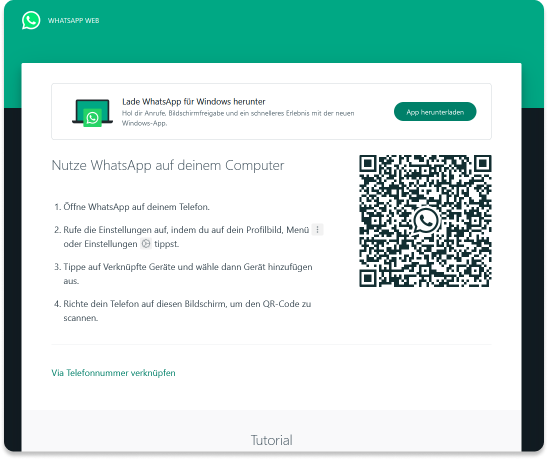
Source: Meta
- Open your web browser and navigate to the WhatsApp Business Web page.
- A QR code will be displayed on the page. Leave this code open on your screen.
- Now open the WhatsApp Business app on your phone.
- Go to Settings or “More options” and select “WhatsApp Web”.
- Activate your camera to scan the QR code on your PC screen.
- After scanning the QR code, you will be automatically logged into your WhatsApp Business account on your PC.
- You can now use WhatsApp Business on your PC just as you do on your phone. All your messages are synchronized, allowing you to switch seamlessly between linked devices.
How to install WhatsApp Business on your desktop
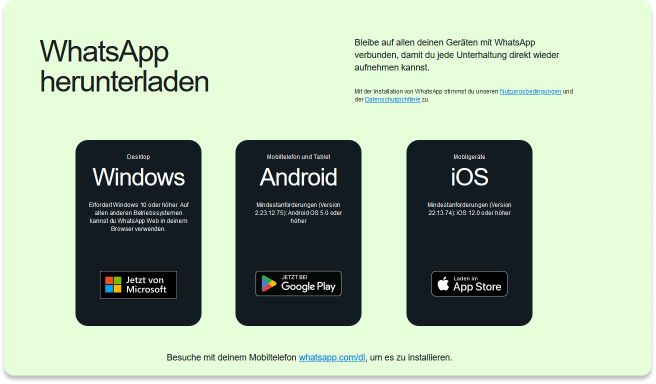
Would you prefer to use a desktop application instead? No problem! The WhatsApp Business desktop app offers all the necessary features and can be easily downloaded and installed. You can find the download link on the official WhatsApp website. Here are some helpful tips to use and optimize the messenger as smoothly as possible. We will explain step-by-step how you can make the most of these services:
Source: Meta
- Open your web browser and go to the official WhatsApp website.
- Select “WhatsApp Business” from the menu and then click on “Download”.
- Choose the version that matches your operating system (Windows or Mac).
- The download of the installation file should start automatically. If it doesn't, click on the provided link to start the download manually.
- Once the download is complete, open the installation file.
- Follow the on-screen instructions to complete the installation.
- After installation, WhatsApp Desktop will open automatically.
- A QR code will appear on the screen. Open the WhatsApp Business app on your smartphone, tap the menu icon, and select “WhatsApp Web”.
- Scan the QR code on your PC screen with your smartphone's camera.
- Once the QR code has been successfully scanned, you will be automatically logged into your WhatsApp Business app account on your PC.

Overview of available settings and features in the WhatsApp Web and desktop versions
As a busy entrepreneur, it is important to stay up to date with technological possibilities. WhatsApp Business enables effective customer communication.
WhatsApp Web is a web-based version of WhatsApp. Users can access their account via a web browser. It offers almost all the features of the mobile app, including messaging, voice and video calls, and access to media files. With a QR code, the account can be opened on any internet-enabled smartphone or computer.
WhatsApp Desktop for PC is a standalone application that is installed on your computer. It offers the same features as WhatsApp Web, but with a more native and integrated experience. Once installed, users can simply open the application and log in to their WhatsApp account without having to scan a QR code every time. WhatsApp Desktop provides a more user-friendly interface specifically designed for the desktop. The windowed application can be resized and moved.
Overall, both WhatsApp Web and the WhatsApp Desktop app offer high levels of accessibility and flexibility as messengers. However, the WhatsApp Desktop application provides a more seamless and integrated experience on a PC. Both versions synchronize data with the mobile app, but they differ in terms of accessibility and user interface across devices.
Lerne noch mehr über Kundenkommunikation
Weitere spannende Blogartikel rund um Marketing, Automatisierung und digitalen Kundenservice.


